

#1
1 week ago
Hello commanders,
Sending expeditions one by one gets tiring once you have a lot of expedition slots. With Expedition Fleet templates and the new Bulk send option, you set your expedition fleet up once and then launch as many expeditions as you like with a single click, straight from the galaxy view.
This guide walks you through everything step by step, so even if you have never used a fleet template before you will be sending your first bulk expedition in a couple of minutes.
WHAT YOU NEED
• An active Admiral officer. Expedition Fleet templates are an Admiral feature.
• Astrophysics level 1 or higher.
• At least one free expedition slot (and a free fleet slot for each expedition).
• Enough ships and Deuterium on the planet or moon you send from.
1. WHERE TO FIND IT
Open the Galaxy view and go to any system. The last row, position 16 (Deep space), is where expeditions go. On the right side of that row you will find the Expedition Fleet button, a template list and the send button.

Expeditions always leave from the planet or moon you currently have selected, so pick the right one in your planet list first.
2. CREATE A TEMPLATE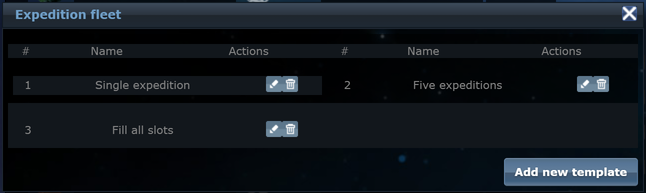
You can keep up to 10 templates. The pencil icon edits a template, the bin deletes it, and clicking a template's name selects it in the galaxy row.
Now fill in the form:
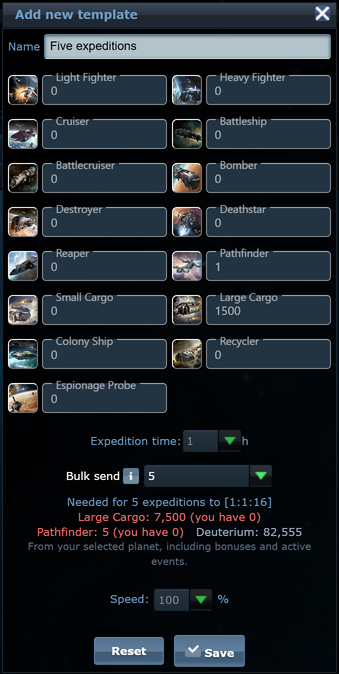
• Name: anything that helps you recognise it, for example "Five expeditions".
• Ships: how many of each ship one expedition takes.
• Expedition time: how many hours the fleet stays out exploring. The maximum is your Astrophysics level.
• Bulk send: how many expeditions one click sends. See the next section.
• Speed: the flight speed, from 10% to 100%.
Right under Bulk send, the form shows what the whole run needs: the ships and the Deuterium for all of its expeditions, from your selected planet to the system you are viewing in the galaxy. Your class bonus and active events such as a fuel discount are already included, so this is exactly what the real send will use. Anything your planet does not have enough of turns red and shows how much you have. In the example above the planet has no Large Cargo or Pathfinder yet, so the run would not start.
Click Save and the template is ready.
3. THE BULK SEND OPTION
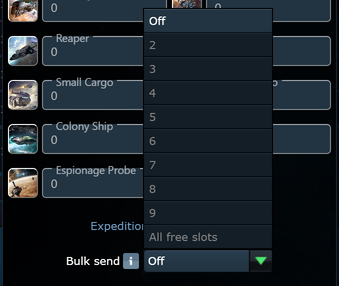
• Off: one click sends one expedition. This is how templates always worked, and it is the default.
• A number (2, 3, 4 ...): one click sends that many expeditions. The list goes up to your current number of expedition slots.
• All free slots: one click sends as many expeditions as can leave right now: every free expedition slot, as long as you also have a free fleet slot for each one.
Bulk send never goes over your free slots. If you choose 10 but only 6 slots are free, 6 expeditions are sent.
Important: the ships in the template are for one expedition. A template with 1,500 Large Cargo set to 5 needs 7,500 Large Cargo on the planet, plus fuel for all five flights. The line under Bulk send does this math for you.
4. SENDING
Choose your template in the list next to Expedition Fleet. The send button now tells you what a click will do:

send ×5 means five expeditions.

all means every free expedition slot.
Click it once. Here is what happens: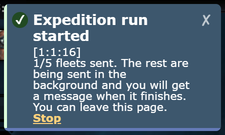
You can leave the page. Go build, research or log out. The run keeps going without you, and every new fleet shows up in your fleet movements like any other.
5. SEVERAL SYSTEMS AT THE SAME TIME
You can run bulk sends to different systems in parallel. For example, with a template set to 5:
• You can have up to 5 runs going at once.
• Runs share your slots fairly. A new run only counts the slots that the runs already going will not use.
• Clicking again on a system that already has a run going does not start a second one. Instead you are asked whether you want to stop it:
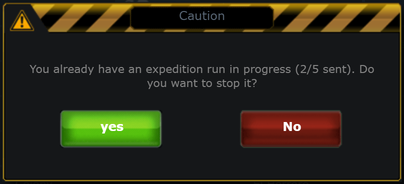
Choose yes to stop that run. Expeditions already sent keep flying, only the ones not sent yet are cancelled. The Stop link in the "run started" notification does the same thing.
6. WHEN THE RUN ENDS
When a run ends you receive a summary in Messages > Fleets > Other. It tells you how many expeditions were sent and why the run ended.

A run ends for one of these reasons:
• All requested expeditions were sent. Everything went as planned.
• Your expedition slots or fleet slots are full.
• Not enough ships left on the planet. The message lists exactly which ship is missing and how many.
• Not enough Deuterium for fuel. The message shows how much was needed and how much you had.
• Vacation mode was switched on, or your Admiral expired.
• The attack block became active.
• You stopped the run yourself.
A run that sends only one expedition (for example when only one slot was free) does not send a summary, since you already saw that fleet leave.
7. GOOD TO KNOW
• Every expedition also uses a fleet slot. With 9 expedition slots but only 7 fleet slots, at most 7 expeditions can be out at the same time. Researching Computer Technology gives you more fleet slots.
• Every expedition is a normal expedition. Bulk send only saves you the clicks. Flight time, fuel, results and all the usual expedition rules are exactly the same as sending them one by one.
• A run has a fixed size. It sends at most the number it started with. If you recall an expedition during the run, the freed slot is not refilled automatically. Click again if you want to use it.
• Editing or deleting a template during a run changes nothing. The run keeps the ships, time and speed it started with.
• Ships and Deuterium are checked before every single fleet. If you spend them on something else while a run is going, the run stops at that point and tells you why.
• Resources that are produced during the run count. Your planet is brought up to date before each fleet leaves.
8. TIPS
• Before a big run, open the template from the system you are about to send to and check the line under Bulk send. If anything is red, the run will stop early.
• Use a number instead of All free slots if you want to keep some slots free for something else.
• Make one template per fleet setup you use often, for example a small fast one and a big cargo one, and simply switch between them in the galaxy row.
• Coming back after a break? Pick your template, choose all, click once, and your slots are full again before you have finished reading your messages.
If something behaves differently from what is described here, open a support ticket with the time and coordinates, or ask in the Player Support section. We check every report.
Good luck out there in deep space, commanders!
The OGameXL Game Knowledge Team
Sending expeditions one by one gets tiring once you have a lot of expedition slots. With Expedition Fleet templates and the new Bulk send option, you set your expedition fleet up once and then launch as many expeditions as you like with a single click, straight from the galaxy view.
This guide walks you through everything step by step, so even if you have never used a fleet template before you will be sending your first bulk expedition in a couple of minutes.
WHAT YOU NEED
• An active Admiral officer. Expedition Fleet templates are an Admiral feature.
• Astrophysics level 1 or higher.
• At least one free expedition slot (and a free fleet slot for each expedition).
• Enough ships and Deuterium on the planet or moon you send from.
1. WHERE TO FIND IT
Open the Galaxy view and go to any system. The last row, position 16 (Deep space), is where expeditions go. On the right side of that row you will find the Expedition Fleet button, a template list and the send button.
Expeditions always leave from the planet or moon you currently have selected, so pick the right one in your planet list first.
2. CREATE A TEMPLATE
- Click Expedition Fleet. A window opens with your saved templates.
- Click Add new template.
You can keep up to 10 templates. The pencil icon edits a template, the bin deletes it, and clicking a template's name selects it in the galaxy row.
Now fill in the form:
• Name: anything that helps you recognise it, for example "Five expeditions".
• Ships: how many of each ship one expedition takes.
• Expedition time: how many hours the fleet stays out exploring. The maximum is your Astrophysics level.
• Bulk send: how many expeditions one click sends. See the next section.
• Speed: the flight speed, from 10% to 100%.
Right under Bulk send, the form shows what the whole run needs: the ships and the Deuterium for all of its expeditions, from your selected planet to the system you are viewing in the galaxy. Your class bonus and active events such as a fuel discount are already included, so this is exactly what the real send will use. Anything your planet does not have enough of turns red and shows how much you have. In the example above the planet has no Large Cargo or Pathfinder yet, so the run would not start.
Click Save and the template is ready.
3. THE BULK SEND OPTION
• Off: one click sends one expedition. This is how templates always worked, and it is the default.
• A number (2, 3, 4 ...): one click sends that many expeditions. The list goes up to your current number of expedition slots.
• All free slots: one click sends as many expeditions as can leave right now: every free expedition slot, as long as you also have a free fleet slot for each one.
Bulk send never goes over your free slots. If you choose 10 but only 6 slots are free, 6 expeditions are sent.
Important: the ships in the template are for one expedition. A template with 1,500 Large Cargo set to 5 needs 7,500 Large Cargo on the planet, plus fuel for all five flights. The line under Bulk send does this math for you.
4. SENDING
Choose your template in the list next to Expedition Fleet. The send button now tells you what a click will do:
send ×5 means five expeditions.
all means every free expedition slot.
Click it once. Here is what happens:
- The first expedition leaves immediately. If it cannot leave (not enough ships, not enough Deuterium, no free slot and so on), you see the reason right away and nothing else is sent.
- The remaining expeditions are sent by the server in the background, one after another, usually one to a few seconds apart.
- A notification confirms that the run has started. It stays on screen until you close it, and its Stop link cancels the expeditions that have not left yet.
You can leave the page. Go build, research or log out. The run keeps going without you, and every new fleet shows up in your fleet movements like any other.
5. SEVERAL SYSTEMS AT THE SAME TIME
You can run bulk sends to different systems in parallel. For example, with a template set to 5:
- Go to system 1:1 and click send ×5.
- Go to system 1:2 and click send ×5 again.
• You can have up to 5 runs going at once.
• Runs share your slots fairly. A new run only counts the slots that the runs already going will not use.
• Clicking again on a system that already has a run going does not start a second one. Instead you are asked whether you want to stop it:
Choose yes to stop that run. Expeditions already sent keep flying, only the ones not sent yet are cancelled. The Stop link in the "run started" notification does the same thing.
6. WHEN THE RUN ENDS
When a run ends you receive a summary in Messages > Fleets > Other. It tells you how many expeditions were sent and why the run ended.
A run ends for one of these reasons:
• All requested expeditions were sent. Everything went as planned.
• Your expedition slots or fleet slots are full.
• Not enough ships left on the planet. The message lists exactly which ship is missing and how many.
• Not enough Deuterium for fuel. The message shows how much was needed and how much you had.
• Vacation mode was switched on, or your Admiral expired.
• The attack block became active.
• You stopped the run yourself.
A run that sends only one expedition (for example when only one slot was free) does not send a summary, since you already saw that fleet leave.
7. GOOD TO KNOW
• Every expedition also uses a fleet slot. With 9 expedition slots but only 7 fleet slots, at most 7 expeditions can be out at the same time. Researching Computer Technology gives you more fleet slots.
• Every expedition is a normal expedition. Bulk send only saves you the clicks. Flight time, fuel, results and all the usual expedition rules are exactly the same as sending them one by one.
• A run has a fixed size. It sends at most the number it started with. If you recall an expedition during the run, the freed slot is not refilled automatically. Click again if you want to use it.
• Editing or deleting a template during a run changes nothing. The run keeps the ships, time and speed it started with.
• Ships and Deuterium are checked before every single fleet. If you spend them on something else while a run is going, the run stops at that point and tells you why.
• Resources that are produced during the run count. Your planet is brought up to date before each fleet leaves.
8. TIPS
• Before a big run, open the template from the system you are about to send to and check the line under Bulk send. If anything is red, the run will stop early.
• Use a number instead of All free slots if you want to keep some slots free for something else.
• Make one template per fleet setup you use often, for example a small fast one and a big cargo one, and simply switch between them in the galaxy row.
• Coming back after a break? Pick your template, choose all, click once, and your slots are full again before you have finished reading your messages.
If something behaves differently from what is described here, open a support ticket with the time and coordinates, or ask in the Player Support section. We check every report.
Good luck out there in deep space, commanders!
The OGameXL Game Knowledge Team
Hello commanders,
Sending expeditions one by one gets tiring once you have a lot of expedition slots. With [b]Expedition Fleet templates[/b] and the new [b]Bulk send[/b] option, you set your expedition fleet up once and then launch as many expeditions as you like with a single click, straight from the galaxy view.
This guide walks you through everything step by step, so even if you have never used a fleet template before you will be sending your first bulk expedition in a couple of minutes.
[b]WHAT YOU NEED[/b]
• An active [b]Admiral[/b] officer. Expedition Fleet templates are an Admiral feature.
• [b]Astrophysics[/b] level 1 or higher.
• At least one free [b]expedition slot[/b] (and a free fleet slot for each expedition).
• Enough ships and [b]Deuterium[/b] on the planet or moon you send from.
[b]1. WHERE TO FIND IT[/b]
Open the [b]Galaxy[/b] view and go to any system. The last row, position [b]16 (Deep space)[/b], is where expeditions go. On the right side of that row you will find the [b]Expedition Fleet[/b] button, a template list and the send button.
[img]https://ogamexl.com/img/guides/bulk-expedition-send/01-galaxy-deep-space-row.png[/img]
Expeditions always leave from the planet or moon you currently have selected, so pick the right one in your planet list first.
[b]2. CREATE A TEMPLATE[/b]
[list=1]
[*]Click [b]Expedition Fleet[/b]. A window opens with your saved templates.
[*]Click [b]Add new template[/b].
[/list]
[img]https://ogamexl.com/img/guides/bulk-expedition-send/02-template-manager.png[/img]
You can keep up to [b]10 templates[/b]. The pencil icon edits a template, the bin deletes it, and clicking a template's name selects it in the galaxy row.
Now fill in the form:
[img]https://ogamexl.com/img/guides/bulk-expedition-send/03-template-form.png[/img]
• [b]Name:[/b] anything that helps you recognise it, for example "Five expeditions".
• [b]Ships:[/b] how many of each ship [b]one[/b] expedition takes.
• [b]Expedition time:[/b] how many hours the fleet stays out exploring. The maximum is your Astrophysics level.
• [b]Bulk send:[/b] how many expeditions one click sends. See the next section.
• [b]Speed:[/b] the flight speed, from 10% to 100%.
Right under Bulk send, the form shows [b]what the whole run needs[/b]: the ships and the Deuterium for all of its expeditions, from your selected planet to the system you are viewing in the galaxy. Your class bonus and active events such as a fuel discount are already included, so this is exactly what the real send will use. Anything your planet does not have enough of turns [b][color=#ff6b6b]red[/color][/b] and shows how much you have. In the example above the planet has no Large Cargo or Pathfinder yet, so the run would not start.
Click [b]Save[/b] and the template is ready.
[b]3. THE BULK SEND OPTION[/b]
[img]https://ogamexl.com/img/guides/bulk-expedition-send/04-bulk-send-options.png[/img]
• [b]Off:[/b] one click sends one expedition. This is how templates always worked, and it is the default.
• [b]A number (2, 3, 4 ...):[/b] one click sends that many expeditions. The list goes up to your current number of expedition slots.
• [b]All free slots:[/b] one click sends as many expeditions as can leave right now: every free expedition slot, as long as you also have a free fleet slot for each one.
Bulk send never goes over your free slots. If you choose 10 but only 6 slots are free, 6 expeditions are sent.
[b]Important:[/b] the ships in the template are for [b]one[/b] expedition. A template with 1,500 Large Cargo set to 5 needs [b]7,500 Large Cargo[/b] on the planet, plus fuel for all five flights. The line under Bulk send does this math for you.
[b]4. SENDING[/b]
Choose your template in the list next to [b]Expedition Fleet[/b]. The send button now tells you what a click will do:
[img]https://ogamexl.com/img/guides/bulk-expedition-send/05-send-button-count.png[/img]
[b]send ×5[/b] means five expeditions.
[img]https://ogamexl.com/img/guides/bulk-expedition-send/06-send-button-all.png[/img]
[b]all[/b] means every free expedition slot.
Click it once. Here is what happens:
[list=1]
[*]The [b]first expedition leaves immediately[/b]. If it cannot leave (not enough ships, not enough Deuterium, no free slot and so on), you see the reason right away and nothing else is sent.
[*]The remaining expeditions are sent [b]by the server in the background[/b], one after another, usually one to a few seconds apart.
[*]A notification confirms that the run has started. It stays on screen until you close it, and its [b]Stop[/b] link cancels the expeditions that have not left yet.
[/list]
[img]https://ogamexl.com/img/guides/bulk-expedition-send/07-run-started.png[/img]
[b][color=#5cb85c]You can leave the page.[/color][/b] Go build, research or log out. The run keeps going without you, and every new fleet shows up in your fleet movements like any other.
[b]5. SEVERAL SYSTEMS AT THE SAME TIME[/b]
You can run bulk sends to different systems in parallel. For example, with a template set to 5:
[list=1]
[*]Go to system [b]1:1[/b] and click [b]send ×5[/b].
[*]Go to system [b]1:2[/b] and click [b]send ×5[/b] again.
[/list]
Both runs go at the same time, and you end up with 5 expeditions to 1:1:16 and 5 to 1:2:16.
• You can have up to [b]5 runs[/b] going at once.
• Runs share your slots fairly. A new run only counts the slots that the runs already going will not use.
• Clicking again on a system that already has a run going does not start a second one. Instead you are asked whether you want to stop it:
[img]https://ogamexl.com/img/guides/bulk-expedition-send/08-already-running.png[/img]
Choose [b]yes[/b] to stop that run. Expeditions already sent keep flying, only the ones not sent yet are cancelled. The [b]Stop[/b] link in the "run started" notification does the same thing.
[b]6. WHEN THE RUN ENDS[/b]
When a run ends you receive a summary in [b]Messages > Fleets > Other[/b]. It tells you how many expeditions were sent and why the run ended.
[img]https://ogamexl.com/img/guides/bulk-expedition-send/09-summary-message.png[/img]
A run ends for one of these reasons:
• [b][color=#5cb85c]All requested expeditions were sent.[/color][/b] Everything went as planned.
• [b]Your expedition slots or fleet slots are full.[/b]
• [b]Not enough ships left on the planet.[/b] The message lists exactly which ship is missing and how many.
• [b]Not enough Deuterium for fuel.[/b] The message shows how much was needed and how much you had.
• [b]Vacation mode was switched on[/b], or [b]your Admiral expired[/b].
• [b]The attack block became active.[/b]
• [b]You stopped the run yourself.[/b]
A run that sends only one expedition (for example when only one slot was free) does not send a summary, since you already saw that fleet leave.
[b]7. GOOD TO KNOW[/b]
• [b]Every expedition also uses a fleet slot.[/b] With 9 expedition slots but only 7 fleet slots, at most 7 expeditions can be out at the same time. Researching Computer Technology gives you more fleet slots.
• [b]Every expedition is a normal expedition.[/b] Bulk send only saves you the clicks. Flight time, fuel, results and all the usual expedition rules are exactly the same as sending them one by one.
• [b]A run has a fixed size.[/b] It sends at most the number it started with. If you recall an expedition during the run, the freed slot is [b]not[/b] refilled automatically. Click again if you want to use it.
• [b]Editing or deleting a template during a run changes nothing.[/b] The run keeps the ships, time and speed it started with.
• [b]Ships and Deuterium are checked before every single fleet.[/b] If you spend them on something else while a run is going, the run stops at that point and tells you why.
• [b]Resources that are produced during the run count.[/b] Your planet is brought up to date before each fleet leaves.
[b]8. TIPS[/b]
• Before a big run, open the template from the system you are about to send to and check the line under Bulk send. If anything is red, the run will stop early.
• Use a [b]number[/b] instead of [b]All free slots[/b] if you want to keep some slots free for something else.
• Make one template per fleet setup you use often, for example a small fast one and a big cargo one, and simply switch between them in the galaxy row.
• Coming back after a break? Pick your template, choose [b]all[/b], click once, and your slots are full again before you have finished reading your messages.
If something behaves differently from what is described here, open a support ticket with the time and coordinates, or ask in the [b]Player Support[/b] section. We check every report.
Good luck out there in deep space, commanders!
[b]The OGameXL Game Knowledge Team[/b]